Digital Condition Reporting for Art: A Practical Guide to Getting It Right
What a modern digital condition report should capture, photos, annotations, timestamps, and a clean audit trail galleries and handlers can actually trust.
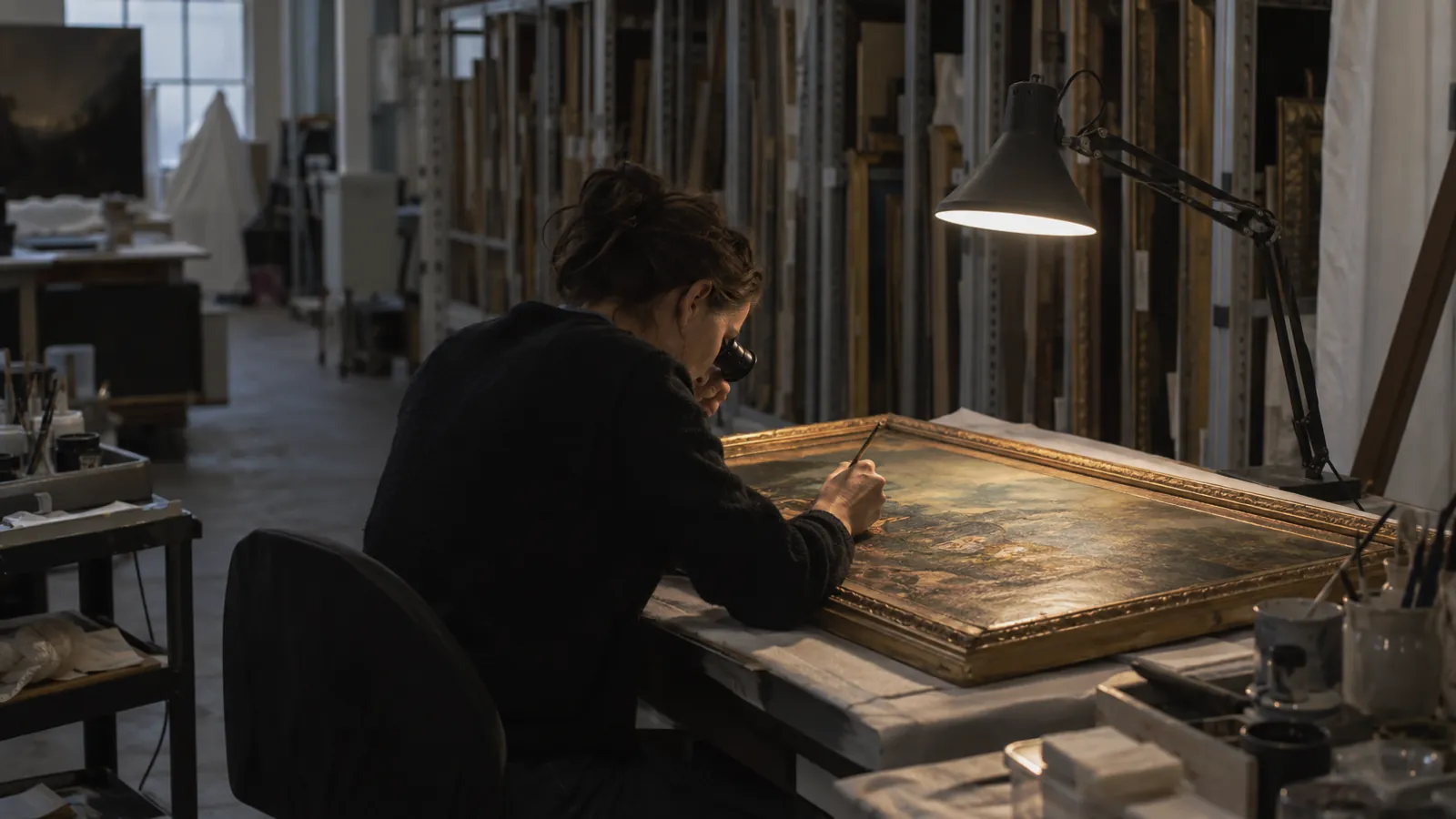
The condition report is the most important document in fine-art handling, and most of them are still PDFs cobbled together from a clipboard, a phone camera, and an hour at a desk afterward. What comes out is technically a record and practically a liability. The photos don't line up with the notes. The timestamp says when the report was typed, which is hours after anybody looked at the piece. And the next time the piece moves, nobody can find the thing.
Digital condition reporting fixes all three of those, if it's done right. This is a practical guide to what a modern condition report should capture, how the workflow should run, and what a serious piece of condition report software has to do to be worth using over the clipboard.
What a digital condition report should capture
A complete condition report, whether it's for an intake, a loan, an installation, or a return, always has the following in it. Anything less and you're keeping a photo album.
- The piece identifier (accession number, inventory ID, or a QR or RFID tag)
- The date and time of the inspection, captured automatically, never typed
- The location of the inspection (gallery, storage facility, lender's premises, freight depot)
- The inspector's identity, signed off in the record
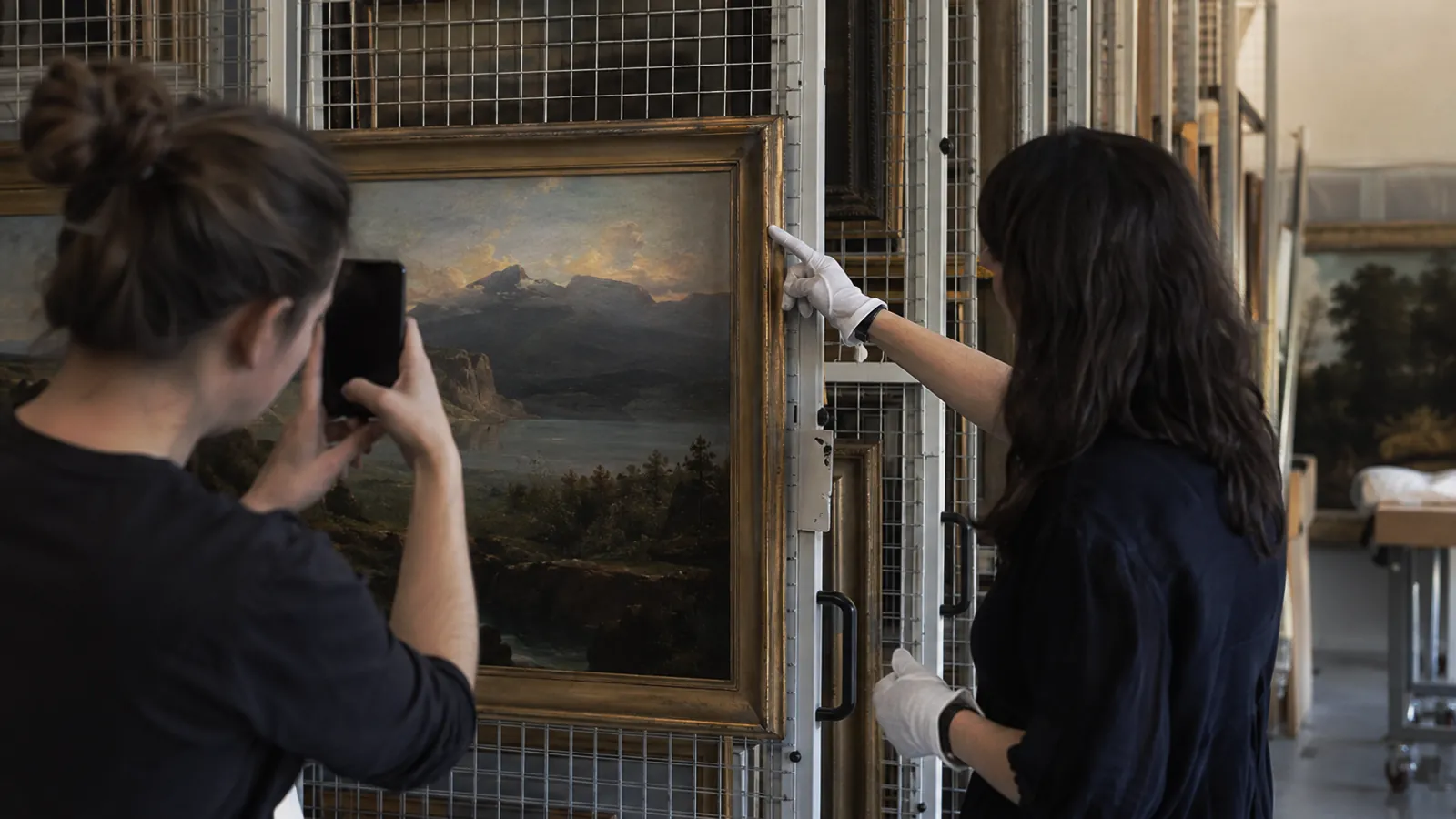
- High-resolution photos from a consistent set of angles: front, back, sides, and macro shots of anything flagged
- Annotated overlays on those photos pinning each specific concern (a scratch, a paint loss, a frame chip, a crushed corner)
- Condition notes in plain language, attached to each annotation
- A comparison view against the previous condition report on file
- A signature, physical or electronic, confirming the report is complete
That's the minimum. Optional but recommended: environmental readings (temperature, humidity) at the moment of inspection, and a packing or crating note if the inspection happened at intake or release.
For how this fits into the rest of a gallery's operation, see Provenance, Condition Reports, and the Quiet Software Layer Every Gallery Needs.
The four common failure modes
Even galleries and handlers who take condition reporting seriously fall into at least one of these. Each one quietly hollows out the report.
1. Photos and notes that don't align
The handler photographs the piece, then writes the notes later from memory. The notes describe a scratch in the upper-right quadrant. The photo doesn't show it clearly. Six months on, nobody can tell whether the scratch was already there.
The fix is to pin annotations directly to the photo at the moment of inspection. A scratch is a pin with a note. You can't separate the two.
2. Timestamps that lie
The PDF says "March 12, 9:42 AM." The piece was actually looked at around 6:30 the evening before, and the report got typed up the next morning at a desk. If the timing is ever disputed, the report doesn't hold.
Timestamps have to come from the device at the moment the photo is taken, and the metadata has to be treated as the source of truth.
3. A format that can't be searched or compared
The PDF gets filed in a Dropbox folder. When the piece moves again, nobody can find the previous report without opening five candidates by hand, and the comparison is done by flipping between tabs.
Condition reports need to live attached to the item's record, in a system that surfaces them on its own. Comparing against the last report should be one click.
4. No clear chain of custody
The report is on the handler's iPad. The PDF gets emailed around. The "original" exists in three slightly different versions, and when it matters, none of them is authoritative.
There has to be one canonical record, locked once it's signed, with a versioned audit trail of anything added afterward.
The workflow that works
A condition-report workflow that holds up under scrutiny looks much the same in every well-run operation.
You scan the piece's identifier (QR, label, accession number) to open the right item record. The previous condition report comes up on its own, and you skim it before you start. Then you photograph from the standard angle set, with the device's clock and location stamped into the metadata.
As you spot each concern, you pin an annotation to the photo and give it a short plain-language note. Then you compare side by side with the previous report: new concerns get flagged, resolved ones get noted. Add a packing or environmental note if it applies.
Sign and submit. From that point the report is part of the item's permanent record and can't be edited. The next handler in the chain (installer, courier, registrar at the destination) sees it before the piece arrives.
Done with a serious tool, the whole cycle takes 15-25 minutes per piece. Done with a clipboard and a typing session afterward, it takes an hour and produces a worse record.
A condition-report field checklist
If you're building or evaluating a condition-report form, this is the minimum field set:
- Item identifier (filled in from the scan)
- Inspector name (filled in from the login)
- Date and time (captured automatically)
- Location (from device geolocation, with a manual override)
- Inspection context (intake / pre-shipment / post-shipment / installation / return / periodic)
- Photo set (front, back, and sides at minimum; macro shots as added)
- Annotated pins on photos with linked notes
- Condition rating (good / fair / poor, or whatever finer scale your operation has agreed on)
- Specific concerns: surface, structure, frame, mount, signs of prior repair
- Environmental conditions at inspection (optional but recommended)
- Packing or crating notes (when they apply)
- Signature
- Comparison to the previous report, with each field flagged as new, resolved, or unchanged
If a tool can't capture all thirteen, you'll be filling the gaps somewhere else. The gaps are where the disputes come from.
What changes when the workflow goes digital
Three things change once the reports stop being PDFs.
Time per report drops by roughly half, because the notes are captured as pins on the photo instead of typed up afterward from memory.
Disputes get shorter, because a timestamp and metadata trail is hard to argue with. Instead of "I'm sure it was fine when it left us," you send the 6:30 PM photo with the pin on the corner.
And the knowledge stays in the building. Every prior report is one click from the item record, so new staff learn a piece by reading its history instead of interviewing whoever has been handling it for years.
The case for going digital is operational and legal. Nobody does it for the looks.
How Stowley handles this
Stowley's condition reporting is built into the same item record that holds the piece's photos, dimensions, location history, and provenance. Scan a QR label and the right record opens, with the previous condition report sitting there ready to compare. Photos taken from inside the app stamp the timestamp, the location, and the inspector's identity automatically. Annotations pin directly to the photo and carry their own notes. Submitting signs the report and locks it into the immutable record. The next handler in the chain (installer, courier, registrar at the destination) sees it by opening the item.
Nobody has to remember to file anything. The report falls out of doing the inspection inside the tool that already runs the operation.
Where to go from here
If your condition reports today are PDFs in folders, the most useful thing you can do this quarter is move the workflow inside the tool that already holds your item records. Two reports done the new way will make the case better than any argument.
Start a 14-day free trial at /signup, import a couple of real pieces, and run a condition report on each, from QR scan to signed record. You'll feel the difference in the first ten minutes. Neighboring long-form pieces on provenance and lending art without losing sleep live on the blog.